
















Everything under control. With a single app.
Server status, domains or invoices: with the 24fire app you manage your hosting wherever you are — no desktop needed.
- Free, no in-app purchases
- No ads, no trackers
- German and English
- iPhone and Android
Everything that matters. At a glance.
Find your way around straight away: the 24fire app brings your most important hosting functions together in one place, so you stay in control without having to search.
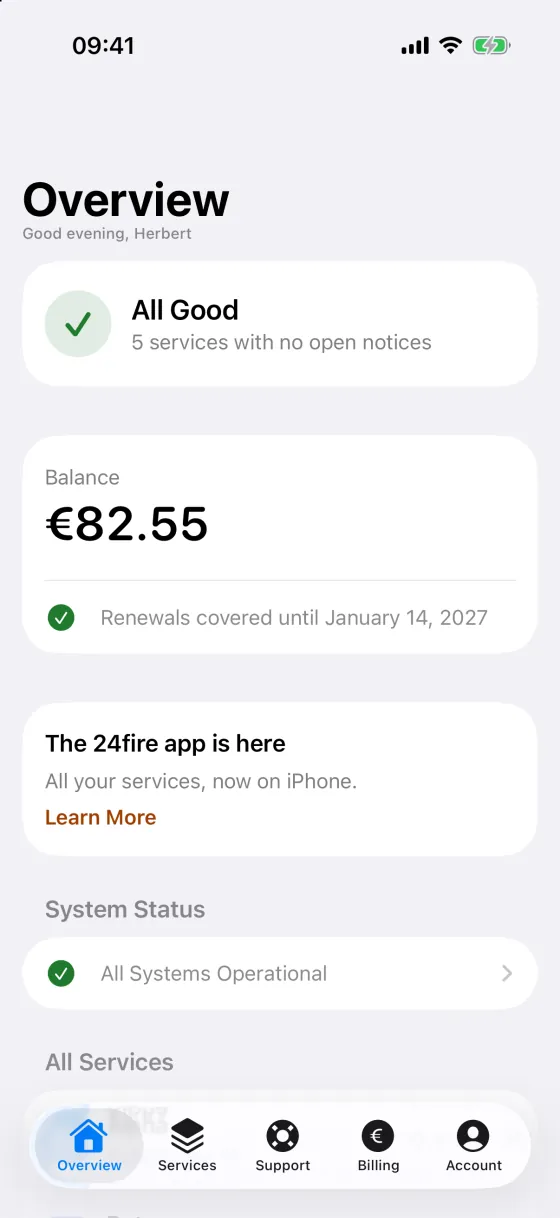
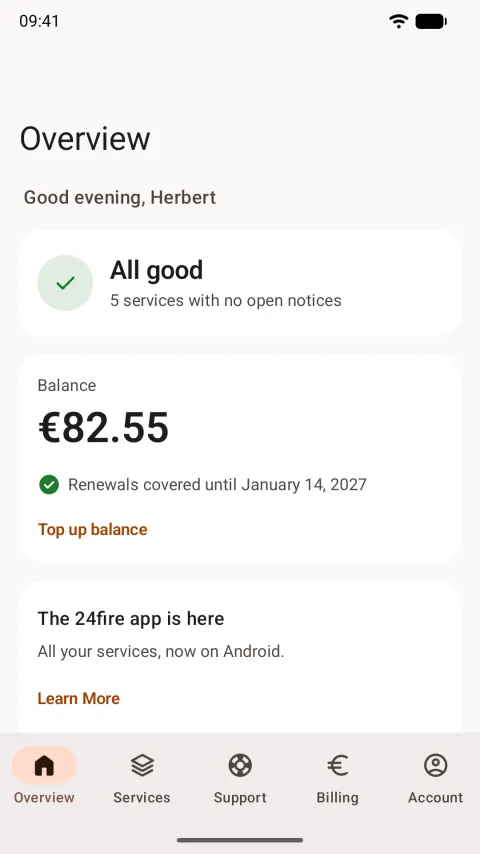
- Overview Keep an eye on your services, your balance and everything that matters.
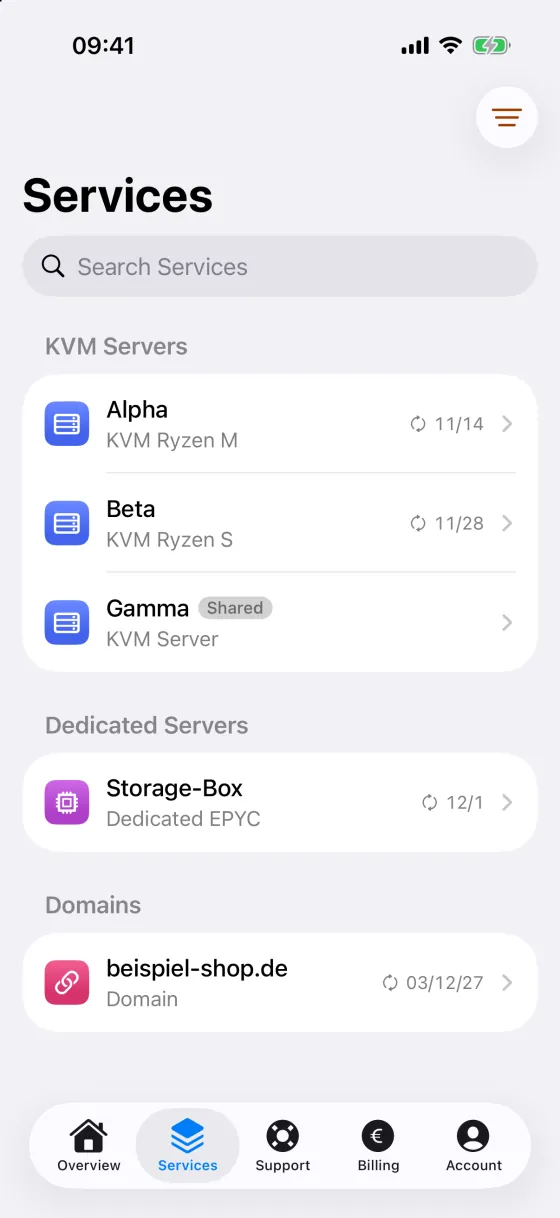
- Services Manage your servers, webspaces and domains conveniently from anywhere.
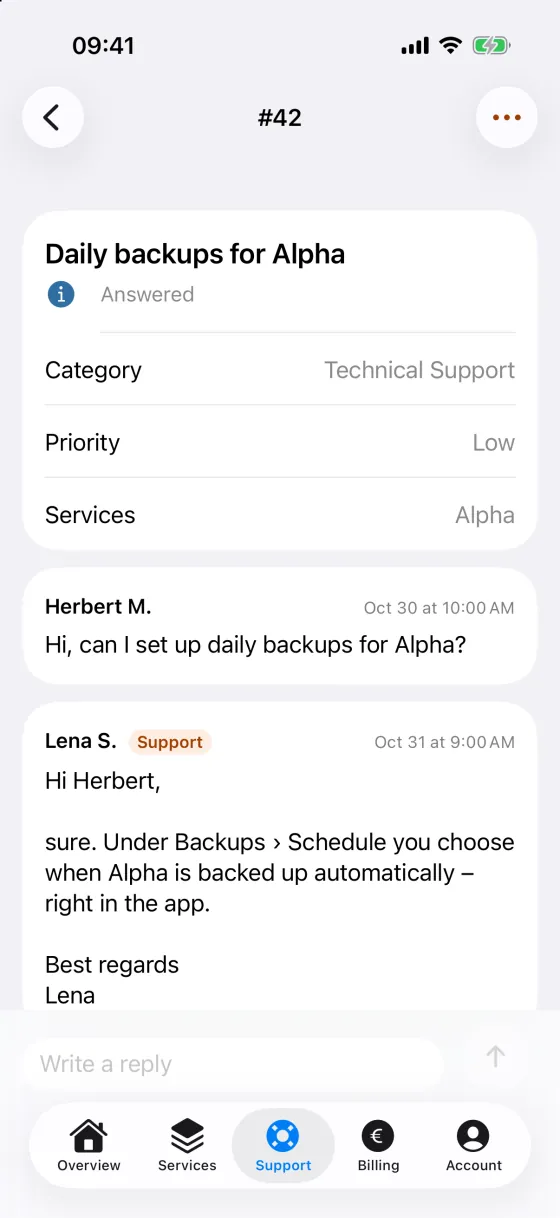
- Support Create and answer support tickets and stay informed about every reply.
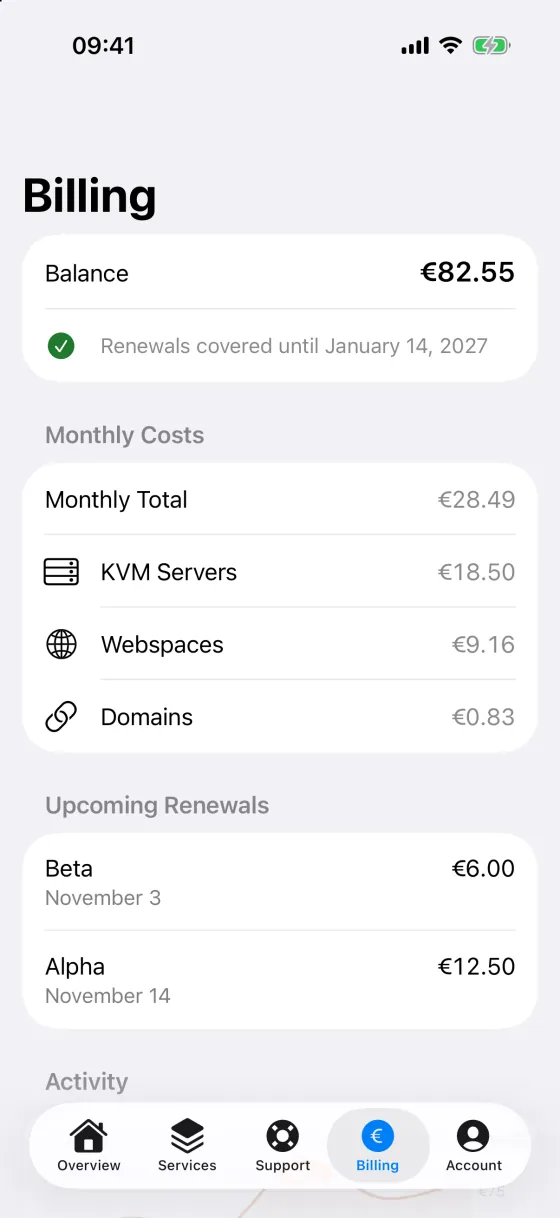
- Billing Keep track of your balance, your costs, renewals and invoices.
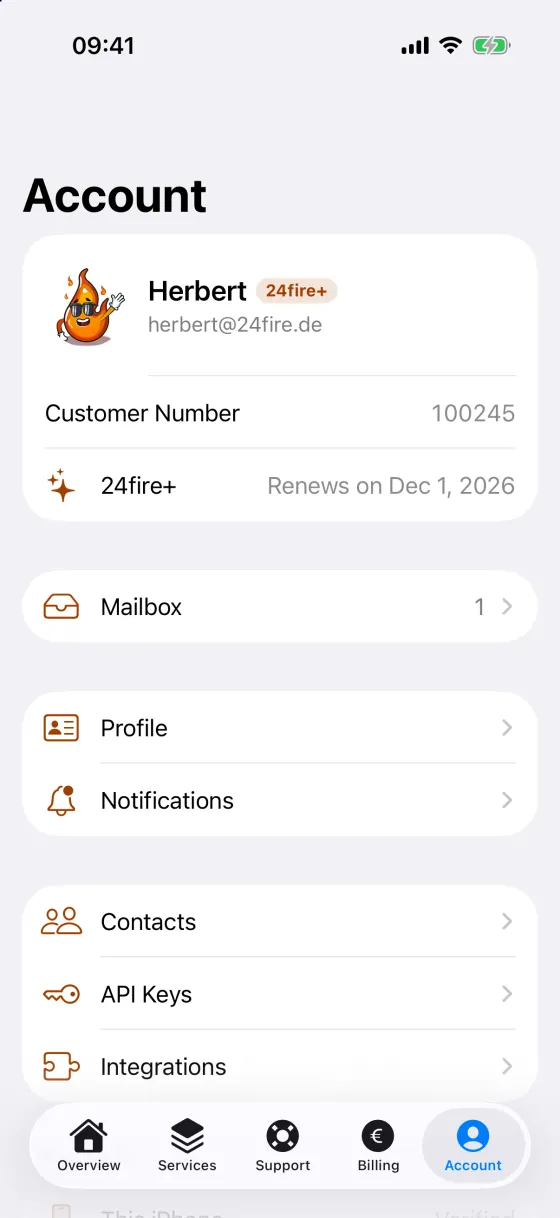
- Account Manage your profile, inbox, notifications and shared services.
Our control panel, in your pocket
Manage KVM servers, dedicated servers, webspaces and domains straight from the app — with the functions you know from the control panel.
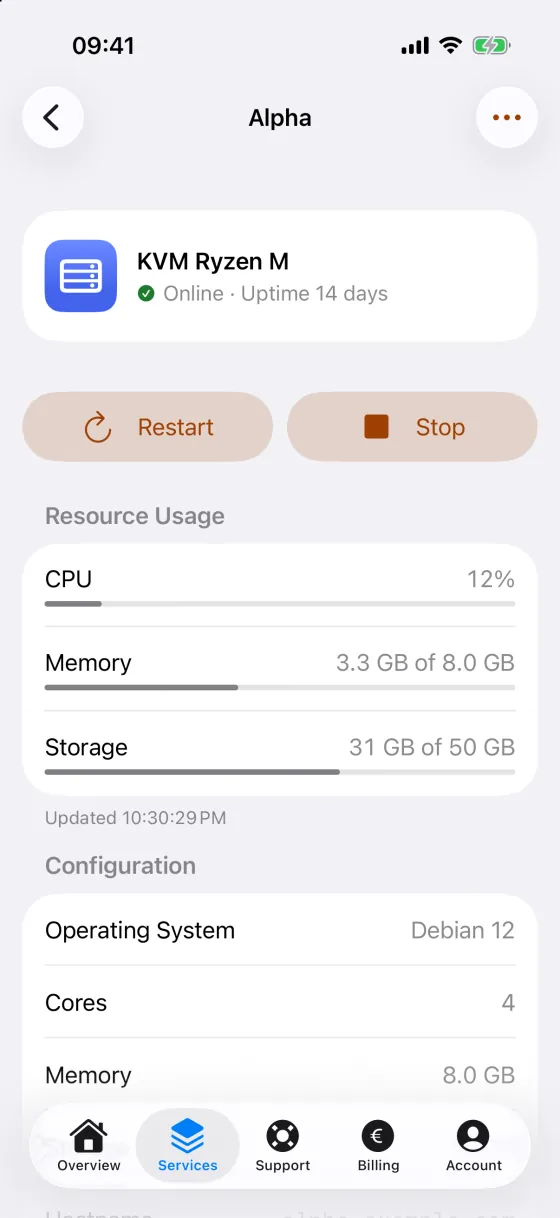
Control your servers
Start, stop or restart your server. Live status, uptime and the load on CPU, memory and storage are right there in the app. Critical values are highlighted from 90 %.
Backups under control
Create, restore or delete backups. The queue and the progress are always in view. For automatic backups you set the interval, the time and how long they are kept.
Reinstall on the move
Pick your operating system, set the hostname, add SSH keys or reset your root password. You follow the progress right in the app — even when you close it.
Domains and DNS
Edit DNS records such as A, AAAA, CNAME, MX, TXT, SRV and CAA right in the app. DNS snapshots save the current state of your zone so you can restore it whenever you need to.
Support without detours
Create, answer, close and rate support tickets right in the app. You are notified about new replies, and the platform status is in view as well.
Billing at a glance
Keep track of your balance and how far it reaches, the monthly cost per product type and upcoming renewals. Amounts that are not covered are marked in red, and your invoices open as PDFs.
See how it feels
Six screens from the app. They move along on their own — or tap your way through.
Security
Security starts on your phone.
When an action calls for extra security, you confirm your identity straight from your phone. That keeps important changes to your services reliably protected.
Every approval in your hand.
For security-relevant changes you get an approval request on your phone. So you always know when an action needs your confirmation.
Approve or decline
You decide whether an action may go ahead. Confirm the request, or decline it if you did not start the change yourself.
Protected by your device
Confirm your identity with Face ID, a fingerprint or your screen lock. Your security key stays safely on your phone.
Your privacy stays your business.
- No ads or in-app purchases
- No access to contacts, photos or microphone
- No trackers or analytics tools
- No recording of your precise location
- No crash reports to third parties
- No sharing of your data
All connections are encrypted.
More options. Fewer taps.
Keep an eye on your balance, start a server from the quick controls or use Siri. Many functions are right there on your phone, without opening the app.
Your hosting at a glance
Keep your balance and important notices in view with the widget. On iPhone you can even put it on the Lock Screen.
Control servers from the quick controls
Start, stop or restart your servers — on iPhone from Control Center, the Lock Screen or the Action button, on Android from the quick settings.
Control servers by voice
On iPhone, use Siri and Shortcuts to start, restart or stop servers and to ask for your balance.
Tasks keep running in the background
Backups, restores and reinstalls keep running and show their progress — even when you close the app.
Frequently asked questions
These questions came up often among our customers. If you have further questions, do not hesitate to contact us!
Ready in 3 steps.
Download it for free, sign in with your 24fire account and connect your phone. From then on you manage your hosting services wherever you are.
-
1
Download the app
Get the 24fire app for free on the App Store or on Google Play. No ads, no in-app purchases.
-
2
Sign in
Sign in with the same credentials you use for your 24fire control panel.
-
3
Connect your phone
Confirm the link once in the control panel or with a code by email. After that you approve security-relevant actions straight from your phone.
No 24fire account yet? Register for free.